

- Quick Steps to Remove a Card from Jackpot City
- Using the Jackpot City App
- Why a Card Might Not Remove Immediately
- A Pending Transaction Is Linked to the Card
- The Saved Card Still Appears After Removal
- What Happens After You Remove a Card
- Adding a New Card
- Your Other Saved Payment Methods
- Common Reasons to Remove a Saved Card
- If You Still Need Help: Contacting Jackpot City Support
If you want to remove a card from Jackpot City, the fastest route is through your account’s Banking section, where all your saved payment methods are listed and managed. Whether you’re replacing an expired debit card, switching banks, or simply tidying up your payment details, the process takes only a few minutes once you know where to look. This guide walks through exactly how to remove card from Jackpot City on both desktop and the mobile app, what to do if the option doesn’t respond straight away, and what happens to your account once the old card is gone.
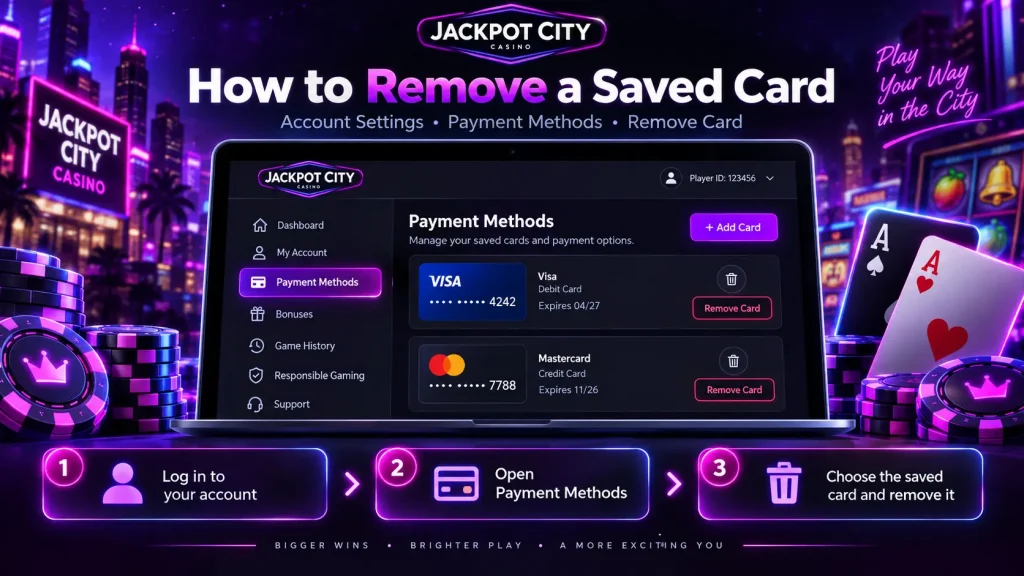
Quick Steps to Remove a Card from Jackpot City
Jackpot City keeps all payment-related settings, including saved debit cards, inside the Banking area of your account rather than scattered across separate menus. This is where you deposit, withdraw, and manage the cards linked to your profile, so it’s also where card removal happens. Once you’re logged in, the process is straightforward and doesn’t require any special permissions beyond your normal account access.
To remove a saved card from your Jackpot City account:
- Log in to your Jackpot City account using your usual username and password.
- Open the account or profile menu, usually found near your name or account icon at the top of the page.
- Select Banking (sometimes shown as Cashier) to open your payment settings.
- Find the list of saved payment methods and locate the card you want to remove.
- Select the card, choose the option to remove or delete it, and confirm the action when prompted.
Once confirmed, the card is taken off your saved payment methods and will no longer appear as an option the next time you deposit or withdraw. The table below summarises where to find this feature depending on how you access your account.
| Access point | Where to go | What you’ll find |
|---|---|---|
| Desktop browser | Account/profile menu, top of the page | Banking section with all saved cards and other payment methods |
| Mobile browser | Same account menu, adapted for smaller screens | Full Banking functionality, including card management |
| Jackpot City app | In-app account or menu icon | Banking area mirroring the desktop cashier |
Using the Jackpot City App
If you play mainly through the Jackpot City app, the same card management tools are available there. The app connects to the same account and cashier as the website, so any card you remove through the app is also removed if you later log in on a browser, and vice versa. Navigate to your account menu within the app, open the Banking section, and follow the same selection and confirmation steps described above. There’s no need to remove or reinstall the app itself to manage a saved card; this is purely an in-account setting.
Why a Card Might Not Remove Immediately
Most of the time, removing a card from Jackpot City is instant. Occasionally, though, players find that a card doesn’t disappear straight away or that the remove option doesn’t seem to respond. This is usually tied to what that specific card is currently being used for, rather than a problem with your account as a whole.
A Pending Transaction Is Linked to the Card
If a deposit or withdrawal made with that card is still being processed, the card may need to stay linked to your account until the transaction clears. This is a normal part of how payment processing works and applies to that individual transaction only. Once the withdrawal or deposit has fully gone through, the card becomes available to remove in the usual way. If you’re planning to remove a card ahead of an upcoming payment, it’s worth checking your recent transaction history first to see whether anything using that card is still marked as pending.
The Saved Card Still Appears After Removal
Occasionally a card you’ve just removed still appears to be listed. In most cases this is simply a display issue rather than the removal having failed. Refreshing the Banking page, logging out and back in, or closing and reopening the app usually clears this up and shows the updated list of saved payment methods. If the card genuinely remains active and selectable for new transactions after trying this, it’s worth double-checking that you removed the correct entry, particularly if you have more than one card saved with similar details.
What Happens After You Remove a Card
Removing a card is a self-contained action that only affects that specific payment method. It doesn’t change your account balance, your login details, or any other saved payment options you have in place.
Adding a New Card
If you’re removing a card because it’s expired, lost, or being replaced, you’ll need to add the new card details before your next debit card deposit or withdrawal. This is done from the same Banking section, usually through an option to add a new payment method. Entering the new card’s details follows the same secure process as when you first added a card to your account, and you can typically do this in the same session right after removing the old one.
Your Other Saved Payment Methods
If you have more than one payment method saved, such as an e-wallet alongside a debit card, removing one card has no effect on the others. They remain available for deposits and withdrawals exactly as before. This makes it easy to phase out an old card gradually: remove it once you’ve confirmed a replacement method is in place, rather than needing to plan around a gap in your available payment options.
Common Reasons to Remove a Saved Card
Players remove a saved card from their Jackpot City account for a variety of everyday reasons, including:
- The card has expired or been replaced by the bank.
- The card was lost or stolen and a new one has been issued.
- Switching to a different bank account or debit card entirely.
- Keeping saved payment details to a minimum for personal security.
- General account tidying after not using a particular card for a while.
Whatever the reason, the removal process itself stays the same regardless of why you’re doing it.
If You Still Need Help: Contacting Jackpot City Support
If you’ve worked through the steps above and a card still won’t remove, or the option isn’t showing where you expect it to be, Jackpot City’s support team can take it from there. The Help Centre is accessible from the top of the website or from your account menu once logged in, and includes both self-help articles and a live chat option for direct assistance. Account and payment queries, including managing saved cards, fall within the topics support regularly handles, so this is a reliable fallback if the in-account option doesn’t behave as expected. Having your account details and, where relevant, the last few digits of the card in question ready before you reach out will help the process move quickly.