

- Quick Fixes for the Jackpot City Website
- Clearing Cache and Cookies (Chrome, Safari, Firefox, Edge)
- Quick Fixes for the Jackpot City App
- Why Games Freeze or Connections Drop Mid-Play
- Why Is Jackpot City Not Working Today: How Long Is Jackpot City Under Maintenance
- When It’s Not a Technical Fault: Account Access Reasons
- Table: Common Symptoms and Fastest Fix
- Still Not Working? Contact Support
If Jackpot City has stopped loading, frozen mid-game, or won’t let you log in, the cause is usually one of a handful of things: a temporary device or connection issue, a browser cache problem, an app-specific fault, scheduled maintenance, or an account-level block rather than a technical fault at all. Most of these are fixed in a couple of minutes without needing to contact anyone.
This guide works through the fixes in the order most UK players find fastest, starting with the website, then the app, then what to do if a game freezes mid-session or you suspect the problem sits with your account rather than the platform itself.
- Restart your device and check your connection first
- Clear your browser’s cache and cookies
- Try a different browser or disable extensions
- Reinstall the app if it’s app-specific
- Check whether a self-exclusion setting is blocking your login
- Contact support if nothing above resolves it
Quick Fixes for the Jackpot City Website
When the site won’t load, hangs on login, or shows a blank or partially loaded page, start with the basics before assuming anything is wrong with the casino itself. Restarting your device is the step most people skip, but it clears the current state of your operating system and browser processes, which resolves a surprising number of loading and login failures on its own. Give it a proper restart rather than just closing and reopening your browser.
If that doesn’t help, the next most effective fix is clearing your browser’s cache, cookies and history. Browsers store a growing amount of data about every site you visit, and once that storage fills up it can slow down page loading and occasionally block a site from opening properly. Clearing it out gives your browser a clean slate and, as a bonus, frees up storage and tidies your browsing history at the same time.
Clearing Cache and Cookies (Chrome, Safari, Firefox, Edge)
The exact steps vary slightly by browser, but the process is short in each case:
- Chrome (desktop): click the three-dot menu, top right, then More tools > Clear browsing data (or use the shortcut Ctrl+Shift+Del)
- Chrome (Android): tap More > History > Clear Browsing Data
- Safari (iPhone/iPad): open the History icon, tap the clock symbol, then clear
- Safari (desktop): select History in the menu bar, then Clear History
- Firefox: open the menu, go to Options > Privacy & Security > History > Clear History, and select “Everything” for the time range
- Edge: click the Hub icon, select History, then Clear History (or use Ctrl+H to jump straight there)
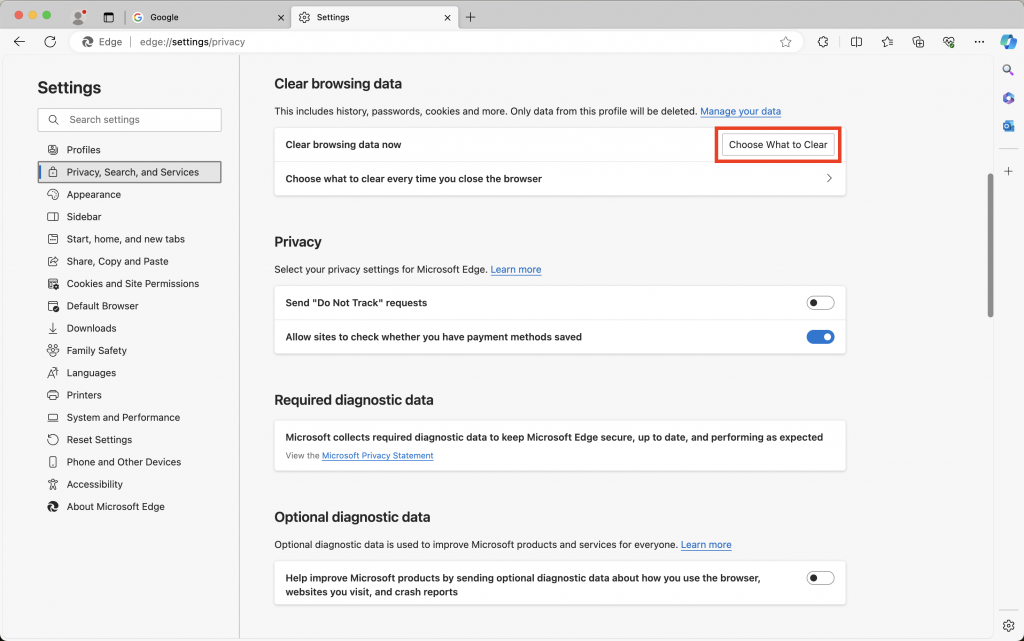
If clearing your history doesn’t fix it, try a different browser altogether. Some sites render more reliably in one browser than another, and switching to an up-to-date version of Chrome or Firefox is often enough to get past a loading issue. It’s also worth temporarily disabling ad blockers or privacy extensions, since these occasionally block parts of a casino page from loading correctly, particularly game frames and live chat widgets. Turn them off, reload the page, and turn them back on afterwards if you want to keep using them day to day.
Quick Fixes for the Jackpot City App
App-specific problems, where the app won’t open, freezes on launch, or fails to load games while everything else on your phone works fine, are usually best solved by deleting and reinstalling it. This clears out any corrupted data or a faulty update that installed incorrectly, and gives you a fresh copy of the app from the App Store or Google Play. It’s a quick process:
- Delete the Jackpot City app from your device
- Restart your device
- Reinstall the app from the App Store (iOS) or Google Play (Android)
- Log back in with your existing account details
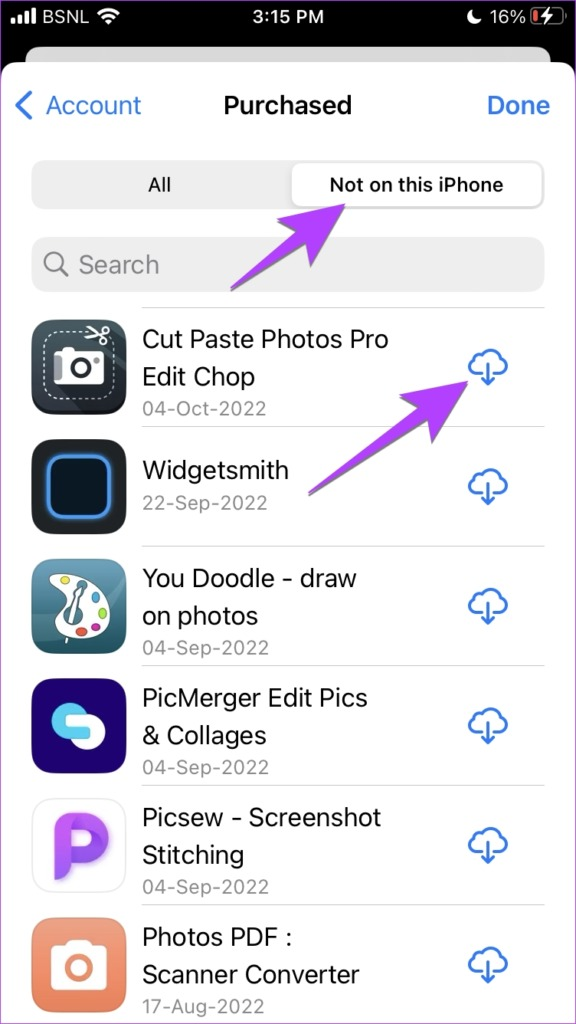
While you’re reinstalling, or if you’d rather not go through the process at all, the mobile browser version of the site gives you the same account, game library and balance without needing to install anything. It’s a genuinely useful fallback rather than a downgrade, since your account syncs across the app and the mobile site automatically.
Why Games Freeze or Connections Drop Mid-Play
A different category of problem shows up once you’re already logged in and playing: a game that loads but then freezes, buffers repeatedly, or throws up a “connection lost” message partway through a round. This is almost always tied to your internet connection rather than the game itself, and it’s particularly noticeable on live dealer tables, which stream video and need a steadier connection than a standard slot.
A few checks usually sort this out:
- Check your wifi or mobile signal strength, and switch between the two if one is weaker than the other
- Refresh the game or restart the app to force a clean reconnection
- On live tables, a lower streaming quality setting (where available) reduces buffering on slower connections
One thing worth knowing if a disconnect happens mid-round: any wager you’ve already placed is recorded on the server at the moment you place it, not just on your screen, so if the connection drops after you’ve staked, the result is still there once you reconnect. You won’t lose a bet simply because the page froze.
Why Is Jackpot City Not Working Today: How Long Is Jackpot City Under Maintenance
Sometimes the reason the site or app isn’t responding has nothing to do with your device at all: the platform is undergoing scheduled maintenance. This is a routine part of running any online casino, used for updates, security patches and game library changes, and it typically affects the site for a short, defined window rather than an extended period. Maintenance windows aren’t usually announced far in advance, and how long Jackpot City is under maintenance on any given occasion depends on the scope of the update being carried out, so the most reliable approach is simply to check back after a short wait rather than assume anything is permanently wrong.
If you want to confirm whether maintenance is the cause before trying every fix on this page, the fastest way is to reach out through live chat, since support agents can tell you immediately whether there’s a known issue affecting the platform or whether the fault is specific to your device or connection.
When It’s Not a Technical Fault: Account Access Reasons
Not every case of “the site won’t let me in” is a technical problem. If you’re in the UK and have registered with GAMSTOP, the national self-exclusion scheme, you’ll be blocked from logging in to any UK-licensed casino account, including Jackpot City, for the duration of your exclusion period. This isn’t a fault or a glitch; it’s the scheme working as intended, and no amount of clearing cache or reinstalling the app will change it while your exclusion is active.
A second, less discussed reason an account can appear locked is incomplete identity verification. If documents requested during account checks haven’t been fully processed, some account features can be temporarily paused until verification is complete. This is a standard part of how regulated UK casinos manage account security, and it’s usually resolved once the required documents are submitted and reviewed. If you’re unsure which of these applies to you, your account settings or the responsible gambling section of the site will usually clarify your current status.
Table: Common Symptoms and Fastest Fix
| Symptom | Most likely cause | Fastest fix |
|---|---|---|
| Site won’t load or login hangs | Browser cache or temporary device state | Restart device, then clear cache and cookies |
| Site loads in one browser but not another | Browser-specific rendering issue | Switch to an updated Chrome or Firefox |
| App won’t open or freezes on launch | Corrupted app data or failed update | Delete and reinstall the app |
| Games won’t load at all | Ad blocker or extension interference | Disable extensions and reload |
| Game freezes or shows “connection lost” mid-play | Unstable wifi or mobile signal | Check signal strength, refresh the game |
| Live dealer tables buffer repeatedly | Insufficient connection speed for streaming | Switch network or lower stream quality if available |
| Site down platform-wide, no obvious device issue | Scheduled maintenance | Wait and check back, or ask live chat directly |
| Can’t log in despite correct details, no error explanation | GAMSTOP self-exclusion or pending verification | Check account settings or responsible gambling section |
Still Not Working? Contact Support
If you’ve worked through the steps above and the site, app or a specific game is still giving you trouble, the quickest way forward is to contact the Jackpot City support team directly through live chat. Support agents can see account-level details you can’t check yourself, confirm whether an issue is affecting other players or just your account, and walk you through any additional steps specific to your device or situation. It’s worth having a brief note of what you’ve already tried (browser used, whether you’re on the app or mobile site, and roughly when the issue started) so the conversation moves quickly to a fix rather than repeating steps you’ve already covered.
Most access issues, whether it’s the website not loading, the app misbehaving, or a game dropping mid-round, are resolved by the checks in this guide within a few minutes. Working through them in order, starting with a restart and cache clear, gets you back to playing faster than waiting it out, and ties off any doubt about whether the issue is on your end or the platform’s.